Adsense HTML/JavaScript

Showing posts with label SSD1306 I2C OLED. Show all posts

Sunday, July 10, 2022

ESP32-C3/MicroPython BLE UART Communication


In my form posts:
MicroPython bluetooth (BLE) exampls, run on ESP32-C3 show steps to run MicroPython BLE examples, with example of dummy BLE UART example.
MicroPython/ESP32-C3 Exercise: send/receive command via BLE UART modified to send command via UART to control onboard RGB LED remotely.

In this post, it's modified to implement bi-direction BLE UART communication, user enter text, and display on I2C SSD1306 OLED.

For the OLED, read the post ESP32-C3/MicroPython + SSD1306 I2C OLED.

- Once Central connected to Peripheral (both onboard RGB LED ON), user enter text in REPL.
- Central send the text to Peripheral via BLE UART.
- In Peripheral received the text, display on SSD1306 and echo back to Central via BLE UART.
- Central received the text, display on SSD1306.

mpyESP-C3-32S-Kit_ble_simple_peripheral_UART_ssd1306.py

"""
MicroPython/AI-Thinker NodeMCU ESP-C3-32S-Kit
BLE UART Exercise, act as peripheral,
with 128x64 I2C SSD1306 OLED.

Connection between:
ESP32-C3   I2C SSD1306 OLED
============================
GND        GND
3V3        VCC
18         SCL
19         SDA


modified from ble_simple_peripheral.py
"""

# This example demonstrates a UART periperhal.

import bluetooth
import random
import struct
import time
from ble_advertising import advertising_payload

from micropython import const

from machine import Pin, I2C, PWM
import ssd1306

# NodeMCU ESP-C3-32S-Kit onboard LEDs assignment
pwmR = PWM(Pin(3))
pwmG = PWM(Pin(4))
pwmB = PWM(Pin(5))

# set PWM frequency from 1Hz to 40MHz
pwmR.freq(1000)
pwmG.freq(1000)
pwmB.freq(1000)

_IRQ_CENTRAL_CONNECT = const(1)
_IRQ_CENTRAL_DISCONNECT = const(2)
_IRQ_GATTS_WRITE = const(3)

_FLAG_READ = const(0x0002)
_FLAG_WRITE_NO_RESPONSE = const(0x0004)
_FLAG_WRITE = const(0x0008)
_FLAG_NOTIFY = const(0x0010)

_UART_UUID = bluetooth.UUID(
    "6E400001-B5A3-F393-E0A9-E50E24DCCA9E")
_UART_TX = (bluetooth.UUID(
    "6E400003-B5A3-F393-E0A9-E50E24DCCA9E"),
    _FLAG_READ | _FLAG_NOTIFY,
)
_UART_RX = (bluetooth.UUID(
    "6E400002-B5A3-F393-E0A9-E50E24DCCA9E"),
    _FLAG_WRITE | _FLAG_WRITE_NO_RESPONSE,
)
_UART_SERVICE = (
    _UART_UUID,
    (_UART_TX, _UART_RX),
)


class BLESimplePeripheral:
    def __init__(self, ble, name="mpy-uart"):
        self._ble = ble
        self._ble.active(True)
        self._ble.irq(self._irq)
        ((self._handle_tx, self._handle_rx),) \
                           = self._ble.gatts_register_services(
                               (_UART_SERVICE,))
        self._connections = set()
        self._write_callback = None
        self._payload = advertising_payload(
            name=name, services=[_UART_UUID])
        self._advertise()

    def _irq(self, event, data):
        # Track connections so we can send notifications.
        if event == _IRQ_CENTRAL_CONNECT:
            conn_handle, _, _ = data
            print("New connection", conn_handle)
            self._connections.add(conn_handle)
            
            #turn ON GREEN LED
            pwmG.duty(10)
            
            oled_ssd1306.fill(0)    #clear screen
            oled_ssd1306.text("Connected", 0, 0 , 1)
            oled_ssd1306.show()
        elif event == _IRQ_CENTRAL_DISCONNECT:
            conn_handle, _, _ = data
            print("Disconnected", conn_handle)
            self._connections.remove(conn_handle)
            # Start advertising again to allow a new connection.
            self._advertise()
            
            #turn OFF GREEN LED
            pwmG.duty(0)
            
            oled_ssd1306.fill(0)    #clear screen
            oled_ssd1306.text("Disconnected", 0, 0 , 1)
            oled_ssd1306.show()
        elif event == _IRQ_GATTS_WRITE:
            conn_handle, value_handle = data
            value = self._ble.gatts_read(value_handle)
            if (value_handle == self._handle_rx
                and self._write_callback):
                self._write_callback(value)

    def send(self, data):
        for conn_handle in self._connections:
            self._ble.gatts_notify(
                conn_handle, self._handle_tx, data)

    def is_connected(self):
        return len(self._connections) > 0

    def _advertise(self, interval_us=500000):
        print("Starting advertising")
        self._ble.gap_advertise(
            interval_us, adv_data=self._payload)

    def on_write(self, callback):
        self._write_callback = callback


def demo():
    ble = bluetooth.BLE()
    p = BLESimplePeripheral(ble)

    def on_rx(v):
        print("RX", v)
        
        oled_ssd1306.scroll(0,-10)
        oled_ssd1306.fill_rect(0, 50,
                               oled_ssd1306.width-1, 10,
                               0)
        oled_ssd1306.text(v, 0, 50 , 1)
        oled_ssd1306.show()
        
        # echo back in upper case
        p.send(v.upper())
        
    p.on_write(on_rx)

    i = 0
    while True:
        pass
#        if p.is_connected():
#            # Short burst of queued notifications.
#            for _ in range(3):
#                data = str(i) + "_"
#                print("TX", data)
#                p.send(data)
#                i += 1
#        time.sleep_ms(100)

if __name__ == "__main__":
    #All OFF all onboard LED
    pwmR.duty(0)
    pwmG.duty(0)
    pwmB.duty(0)
    
    oled_i2c = I2C(0)
    print("Default I2C:", oled_i2c, "\n")
    
    try:
        oled_ssd1306 = ssd1306.SSD1306_I2C(128, 64, oled_i2c)
        print("Default SSD1306 I2C address:",
              oled_ssd1306.addr, "/",
              hex(oled_ssd1306.addr))
        oled_ssd1306.text('ESP32C3 BLE UART', 0, 0, 1)
        oled_ssd1306.text('Peripheral', 0, 10, 1)
        oled_ssd1306.show()
    except OSError as exc:
        print("OSError!", exc)
        if exc.errno == errno.ENODEV:
            print("No such device")


    demo()


mpyESP32-C3-DevKitM-1_ble_simple_central_UART_128x32.py
"""
MicroPython/Espressif ESP32-C3-DevKitM-1
BLE UART Exercise, act as central,
with 128x32 I2C SSD1306 OLED.

Connection between:
ESP32-C3   I2C SSD1306 OLED
============================
GND        GND
3V3        VCC
18         SCL
19         SDA
"""

# This example finds and connects to a peripheral running the
# UART service (e.g. ble_simple_peripheral.py).

import bluetooth
#import random
#import struct
import time

from ble_advertising import decode_services, decode_name

from micropython import const
from neopixel import NeoPixel
import _thread

from machine import Pin, I2C
import ssd1306

# On Espreffif ESP32-C3-DevKitM-1:
# The onboard RGB LED (WS2812) is connected to GPIO8

np = NeoPixel(Pin(8), 1)

rqs_to_send =False
to_send = ""

_IRQ_CENTRAL_CONNECT = const(1)
_IRQ_CENTRAL_DISCONNECT = const(2)
_IRQ_GATTS_WRITE = const(3)
_IRQ_GATTS_READ_REQUEST = const(4)
_IRQ_SCAN_RESULT = const(5)
_IRQ_SCAN_DONE = const(6)
_IRQ_PERIPHERAL_CONNECT = const(7)
_IRQ_PERIPHERAL_DISCONNECT = const(8)
_IRQ_GATTC_SERVICE_RESULT = const(9)
_IRQ_GATTC_SERVICE_DONE = const(10)
_IRQ_GATTC_CHARACTERISTIC_RESULT = const(11)
_IRQ_GATTC_CHARACTERISTIC_DONE = const(12)
_IRQ_GATTC_DESCRIPTOR_RESULT = const(13)
_IRQ_GATTC_DESCRIPTOR_DONE = const(14)
_IRQ_GATTC_READ_RESULT = const(15)
_IRQ_GATTC_READ_DONE = const(16)
_IRQ_GATTC_WRITE_DONE = const(17)
_IRQ_GATTC_NOTIFY = const(18)
_IRQ_GATTC_INDICATE = const(19)

_ADV_IND = const(0x00)
_ADV_DIRECT_IND = const(0x01)
_ADV_SCAN_IND = const(0x02)
_ADV_NONCONN_IND = const(0x03)

_UART_SERVICE_UUID = bluetooth.UUID(
    "6E400001-B5A3-F393-E0A9-E50E24DCCA9E")
_UART_RX_CHAR_UUID = bluetooth.UUID(
    "6E400002-B5A3-F393-E0A9-E50E24DCCA9E")
_UART_TX_CHAR_UUID = bluetooth.UUID(
    "6E400003-B5A3-F393-E0A9-E50E24DCCA9E")


class BLESimpleCentral:
    def __init__(self, ble):
        self._ble = ble
        self._ble.active(True)
        self._ble.irq(self._irq)

        self._reset()

    def _reset(self):
        # Cached name and address from a successful scan.
        self._name = None
        self._addr_type = None
        self._addr = None

        # Callbacks for completion of various operations.
        # These reset back to None after being invoked.
        self._scan_callback = None
        self._conn_callback = None
        self._read_callback = None

        # Persistent callback for when
        # new data is notified from the device.
        self._notify_callback = None

        # Connected device.
        self._conn_handle = None
        self._start_handle = None
        self._end_handle = None
        self._tx_handle = None
        self._rx_handle = None

    def _irq(self, event, data):
        if event == _IRQ_SCAN_RESULT:
            addr_type, addr, adv_type, rssi, adv_data = data
            if (adv_type in (_ADV_IND, _ADV_DIRECT_IND)
                and
                _UART_SERVICE_UUID in decode_services(adv_data)):
                # Found a potential device,
                # remember it and stop scanning.
                self._addr_type = addr_type
                self._addr = bytes(
                    addr
                )  # Note: addr buffer is owned by
                   #       caller so need to copy it.
                self._name = decode_name(adv_data) or "?"
                self._ble.gap_scan(None)

        elif event == _IRQ_SCAN_DONE:
            if self._scan_callback:
                if self._addr:
                    # Found a device during the scan
                    # (and the scan was explicitly stopped).
                    self._scan_callback(
                        self._addr_type, self._addr, self._name)
                    self._scan_callback = None
                else:
                    # Scan timed out.
                    self._scan_callback(None, None, None)

        elif event == _IRQ_PERIPHERAL_CONNECT:
            # Connect successful.
            conn_handle, addr_type, addr = data
            if addr_type == self._addr_type and addr == self._addr:
                self._conn_handle = conn_handle
                self._ble.gattc_discover_services(self._conn_handle)

        elif event == _IRQ_PERIPHERAL_DISCONNECT:
            # Disconnect (either initiated by us or the remote end).
            conn_handle, _, _ = data
            if conn_handle == self._conn_handle:
                # If it was initiated by us, it'll already be reset.
                self._reset()

        elif event == _IRQ_GATTC_SERVICE_RESULT:
            # Connected device returned a service.
            conn_handle, start_handle, end_handle, uuid = data
            print("service", data)
            if (conn_handle == self._conn_handle
                and
                uuid == _UART_SERVICE_UUID):
                self._start_handle, self._end_handle \
                                    = start_handle, end_handle

        elif event == _IRQ_GATTC_SERVICE_DONE:
            # Service query complete.
            if self._start_handle and self._end_handle:
                self._ble.gattc_discover_characteristics(
                    self._conn_handle,
                    self._start_handle,
                    self._end_handle)
            else:
                print("Failed to find uart service.")

        elif event == _IRQ_GATTC_CHARACTERISTIC_RESULT:
            # Connected device returned a characteristic.
            conn_handle, def_handle, value_handle, properties, uuid = data
            if (conn_handle == self._conn_handle
                and
                uuid == _UART_RX_CHAR_UUID):
                self._rx_handle = value_handle
            if (conn_handle == self._conn_handle
                and
                uuid == _UART_TX_CHAR_UUID):
                self._tx_handle = value_handle

        elif event == _IRQ_GATTC_CHARACTERISTIC_DONE:
            # Characteristic query complete.
            if (self._tx_handle is not None
                and
                self._rx_handle is not None):
                # We've finished connecting and
                # discovering device, fire the connect callback.
                if self._conn_callback:
                    self._conn_callback()
            else:
                print("Failed to find uart rx characteristic.")

        elif event == _IRQ_GATTC_WRITE_DONE:
            conn_handle, value_handle, status = data
            print("TX complete")

        elif event == _IRQ_GATTC_NOTIFY:
            conn_handle, value_handle, notify_data = data
            if (conn_handle == self._conn_handle
                and
                value_handle == self._tx_handle):
                if self._notify_callback:
                    self._notify_callback(notify_data)

    # Returns true if we've successfully connected
    # and discovered characteristics.
    def is_connected(self):
        return (
            self._conn_handle is not None
            and self._tx_handle is not None
            and self._rx_handle is not None
        )

    # Find a device advertising the environmental
    # sensor service.
    def scan(self, callback=None):
        self._addr_type = None
        self._addr = None
        self._scan_callback = callback
        self._ble.gap_scan(2000, 30000, 30000)

    # Connect to the specified device (otherwise
    # use cached address from a scan).
    def connect(self, addr_type=None, addr=None, callback=None):
        self._addr_type = addr_type or self._addr_type
        self._addr = addr or self._addr
        self._conn_callback = callback
        if self._addr_type is None or self._addr is None:
            return False
        self._ble.gap_connect(self._addr_type, self._addr)
        return True

    # Disconnect from current device.
    def disconnect(self):
        if not self._conn_handle:
            return
        self._ble.gap_disconnect(self._conn_handle)
        self._reset()

    # Send data over the UART
    def write(self, v, response=False):
        if not self.is_connected():
            return
        self._ble.gattc_write(self._conn_handle,
                              self._rx_handle,
                              v,
                              1 if response else 0)

    # Set handler for when data is received over the UART.
    def on_notify(self, callback):
        self._notify_callback = callback

def demo():
    global rqs_to_send
    global to_send
    
    ble = bluetooth.BLE()
    central = BLESimpleCentral(ble)

    not_found = False
    
    #Turn ON onboard RGB BLUE
    np[0] = (0, 0, 10)
    np.write()
    
    def on_scan(addr_type, addr, name):
        if addr_type is not None:
            print("Found peripheral:",
                  addr_type, addr, name)
            central.connect()
        else:
            nonlocal not_found
            not_found = True
            print("No peripheral found.")
            
            #Turn ON onboard RGB BLUE
            np[0] = (10, 0, 0)
            np.write()

    central.scan(callback=on_scan)

    # Wait for connection...
    while not central.is_connected():
        time.sleep_ms(100)
        if not_found:
            return

    #Turn ON onboard RGB GREEN
    np[0] = (0, 10, 0)
    np.write()
    
    oled_ssd1306.fill(0)    #clear screen
    oled_ssd1306.text("Connected", 0, 0 , 1)
    oled_ssd1306.show()
            
    print("Connected")
    print("Enter anything to send")
    
    rqs_to_send = False  # clear previous request

    def on_rx(v):
        # convert memoryview to str
        v_str = str(v,'utf8')
        print("RX", v, " : ", v_str)
        
        oled_ssd1306.scroll(0,-10)
        oled_ssd1306.fill_rect(0, 20,
                               oled_ssd1306.width-1, 10,
                               0)
        oled_ssd1306.text(v_str, 0, 20 , 1)
        oled_ssd1306.show()

    central.on_notify(on_rx)

    with_response = False

#    i = 0
    while central.is_connected():
    
        if rqs_to_send:
            central.write(to_send, with_response)
            rqs_to_send = False
            
#        try:
#            v = str(i) + "_"
#            print("TX", v)
#            central.write(v, with_response)
#        except:
#            print("TX failed")
#        i += 1
#       time.sleep_ms(400 if with_response else 30)

    #Turn OFF onboard RGB
    np[0] = (0, 0, 0)
    np.write()
    
    oled_ssd1306.fill(0)    #clear screen
    oled_ssd1306.text("Disconnected", 0, 0 , 1)
    oled_ssd1306.show()
    
    print("Disconnected")


if __name__ == "__main__":
    
    #All OFF all onboard RGB
    np[0] = (0, 0, 0)
    np.write()
    
    oled_i2c = I2C(0)
    print("Default I2C:", oled_i2c, "\n")
    
    try:
        oled_ssd1306 = ssd1306.SSD1306_I2C(128, 32, oled_i2c)
        print("Default SSD1306 I2C address:",
              oled_ssd1306.addr, "/",
              hex(oled_ssd1306.addr))
        oled_ssd1306.text('ESP32C3 BLE UART', 0, 0, 1)
        oled_ssd1306.text('Central', 0, 10, 1)
        oled_ssd1306.show()
    except OSError as exc:
        print("OSError!", exc)
        if exc.errno == errno.ENODEV:
            print("No such device")
    
    def input_thread():
        global rqs_to_send
        global to_send
        while True:
            time.sleep(0.1)
            to_send = input()
            rqs_to_send = True
    
    # In my trial:
    # Without call _thread.stack_size(32768) will easy
    # to force reboot by:
    # ***ERROR*** A stack overflow in task mp_thread has been detected.
    _thread.stack_size(32768)
    _thread.start_new_thread(input_thread, ())
    
    demo()


Wednesday, March 30, 2022

XIAO BLE Sense (nRF52840)/CircuitPython generate QR Code and display on SSD1306 I2C OLED

adafruit_miniqr is a A non-hardware dependant miniature QR generator library.

Once Adafruit CircuitPython Libraries downloaded (as shown in last post's video), there are two examples miniqr_simpletest.py and miniqr_displaytest.py in extracted examples foler, or can be found here.

cpyX_miniqr_ssd1306.py is modified from miniqr_displaytest.py, to run on Seeed XIAO BLE Sense (nRF52840)/CircuitPython 7.2.3 to generate QR Code and display on SSD1306 I2C OLED.


cpyX_miniqr_ssd1306.py
"""
CircuitPython 7.2.3 exercise run on
Seeed XIAO nRF52840 Sense with nRF52840
- generate QR Code using adafruit_miniqr
- display on SSD1306 I2C OLED

lib needed:
- adafruit_displayio_ssd1306.mpy
- adafruit_miniqr.mpy
"""

import os
import sys
import board
import busio
import displayio
import adafruit_displayio_ssd1306
import adafruit_miniqr

displayio.release_displays()

print("=================================================")
info = sys.implementation[0] + ' ' + os.uname()[3] + '\n' + \
       'run on ' + os.uname()[4]
print(info)
print("=================================================")
print(adafruit_miniqr.__name__,
      adafruit_miniqr.__version__)
print(adafruit_displayio_ssd1306.__name__,
      adafruit_displayio_ssd1306.__version__)

# Create the I2C interface and display object of SSD1306_I2C.
i2c = busio.I2C(board.SCL, board.SDA)

ssd1306_i2c_addr = 60
display_width =128
display_height = 64
display_bus = displayio.I2CDisplay(
    i2c, device_address=ssd1306_i2c_addr)
display = adafruit_displayio_ssd1306.SSD1306(
    display_bus, width=display_width, height=display_height)

# remark by Erik:
# base on my testing on 128x64 SSD1306,
# A full white background can improve the recognition
# so I add a background in white
background_bitmap = displayio.Bitmap(display_width,
                                     display_height, 1)
background_palette = displayio.Palette(1)
background_palette[0] = 0xFFFFFF
bg_sprite = displayio.TileGrid(background_bitmap,
                               pixel_shader=background_palette,
                               x=0, y=0)

def bitmap_QR(matrix):

    # monochome (2 color) palette
    BORDER_PIXELS = 2

    # bitmap the size of the screen, monochrome (2 colors)
    bitmap = displayio.Bitmap(
        matrix.width + 2 * BORDER_PIXELS,
        matrix.height + 2 * BORDER_PIXELS, 2
    )
    # raster the QR code
    for y in range(matrix.height):  # each scanline in the height
        for x in range(matrix.width):
            if matrix[x, y]:
                bitmap[x + BORDER_PIXELS, y + BORDER_PIXELS] = 1
            else:
                bitmap[x + BORDER_PIXELS, y + BORDER_PIXELS] = 0
    return bitmap


qr = adafruit_miniqr.QRCode(qr_type=3,
                            error_correct=adafruit_miniqr.L)
qr.add_data(b"http://embedded-things.blogspot.com/")
qr.make()

# generate the 1-pixel-per-bit bitmap
qr_bitmap = bitmap_QR(qr.matrix)
# We'll draw with a classic black/white palette
palette = displayio.Palette(2)
palette[0] = 0xFFFFFF
palette[1] = 0x000000
# we'll scale the QR code as big as the display can handle
scale = min(
    display_width // qr_bitmap.width,
    display_height // qr_bitmap.height
)
# then center it!
pos_x = int(((display_width / scale) - qr_bitmap.width) / 2)
pos_y = int(((display_height / scale) - qr_bitmap.height) / 2)
qr_img = displayio.TileGrid(qr_bitmap,
                            pixel_shader=palette,
                            x=pos_x, y=pos_y)

splash = displayio.Group(scale=scale)
splash.append(bg_sprite)
splash.append(qr_img)
display.show(splash)

# Hang out forever
while True:
    pass

Tuesday, March 29, 2022

Seeed XIAO BLE Sense (nRF52840)/CircuitPython 7.2.3 display on SSD1306 I2C OLED

Updated@2024-01-31

Somethings in displayio changed in CircuitPython 9, check the updated on ESP32-S3:
Waveshare ESP32-S3-Zero/CircuitPython 9.0.0-beta.0 to display on 128x64 SSD1306 I2C OLED


In CircuitPython, to display on SSD1306, there are two approach:
- framebuf  (using adafruit_ssd1306/adafruit_framebuf)
- displayio (using adafruit_displayio_ssd1306)

The video demo Seeed XIAO BLE Sense (nRF52840)/CircuitPython 7.2.3 display on Seeeduino XIAO Expansion board onboard SSD1306 I2C OLED using both framebuf  and displayio.


Exercise code:

cpyX_i2c.py
"""
Seeed XIAO nRF52840 Sense with nRF52840/CircuitPython 7.2.3
- verify I2C SCL/SDA pin
- Scan available I2C devices
"""

import os
import sys
import busio
import board

print("=================================================")
info = sys.implementation[0] + ' ' + os.uname()[3] + '\n' + \
       'run on ' + os.uname()[4]
print(info)
print("=================================================")

print("SCL: ", board.SCL)
print("SDA: ", board.SDA)
i2c = board.I2C()
print(i2c)
print()

#Scan I2C devices
if(i2c.try_lock()):
    print("i2c.scan(): " + str(i2c.scan()))
    i2c.unlock()
print()

cpyX_ssd1306.py
"""
CircuitPython 7.2.3 exercise run on
Seeed XIAO nRF52840 Sense with nRF52840
- display on SSD1306 I2C OLED
- using adafruit_ssd1306

lib needed:
- adafruit_ssd1306.mpy
- adafruit_framebuf.mpy
- font5x8.bin (from examples folder,
  to current folder in CircuitPython device)
"""

import os
import sys
import board
import busio
import time

import adafruit_ssd1306

# Create the I2C interface and display object of SSD1306_I2C.
i2c = busio.I2C(board.SCL, board.SDA)
display = adafruit_ssd1306.SSD1306_I2C(128, 64, i2c)

print("=================================================")
info = sys.implementation[0] + ' ' + os.uname()[3] + '\n' + \
       'run on ' + os.uname()[4]
print(info)
print("=================================================")
print(adafruit_ssd1306.__name__, adafruit_ssd1306.__version__)
print("SCL: ", board.SCL)
print("SDA: ", board.SDA)

print(display)
print("display.width x height: ",
      display.width, " x ", display.height)
    
display.fill(0)
display.show()
time.sleep(1)
display.fill(1)
display.show()
time.sleep(1)

display.fill(0)


strSys = sys.implementation[0] + ' ' + \
         str(sys.implementation[1][0]) +'.'+ \
         str(sys.implementation[1][1]) +'.'+ \
         str(sys.implementation[1][2])

strLib = adafruit_ssd1306.__name__ + '\n' \
         + adafruit_ssd1306.__version__

def drawInfo():
    display.text(strSys, 0, 0, 1)
    display.text(strLib, 0, 10, 1)
    display.text(os.uname()[4], 0, 30, 1)
    display.text("SSD1306", 0, 40, 1)
    strResolution = str(display.rotation) + ' : ' \
                    + str(display.width) + ' x ' \
                    + str(display.height)
    display.text(strResolution, 0, 50, 1)
    
for r in range(0, 4):
    display.fill(0)
    display.rotation = r
    drawInfo()
    display.show()
    time.sleep(5)

display.rotation = 0

#draw rectangle
display.fill(0)
display.rect(0, 0, display.width, display.height, 1)
display.show()
time.sleep(1)
display.fill(0)
display.fill_rect(0, 0, display.width, display.height, 1)
display.show()
time.sleep(1)

#draw circle
display.fill(0)
if display.width > display.height:
    r = (int)(display.height/2)
else:
    r = (int)(display.width/2)
display.circle((int)(display.width/2),
               (int)(display.height/2), r, 1)
display.show()
time.sleep(1)

display.fill(0)
display.show()

# draw pixels
for y in range(0, display.height, 8):
    for x in range(0, display.width, 8):
        display.pixel(x, y, 1)
        display.show()
time.sleep(1)
display.invert(1)
time.sleep(2)
display.invert(0)
time.sleep(1)

cpyX_displayio_ssd1306.py
"""
CircuitPython 7.2.3 exercise run on
Seeed XIAO nRF52840 Sense with nRF52840
- display on SSD1306 I2C OLED
- using adafruit_displayio_ssd1306

lib needed:
- adafruit_displayio_ssd1306.mpy
- adafruit_display_text folder
"""

import os
import sys
import board
import busio
import time

import displayio
import terminalio
import adafruit_displayio_ssd1306
from adafruit_display_text import label

displayio.release_displays()

# Create the I2C interface and display object of SSD1306_I2C.
i2c = busio.I2C(board.SCL, board.SDA)

ssd1306_i2c_addr = 60
display_width =128
display_height = 64
display_bus = displayio.I2CDisplay(
    i2c, device_address=ssd1306_i2c_addr)
display = adafruit_displayio_ssd1306.SSD1306(
    display_bus, width=display_width, height=display_height)

print("=================================================")
info = sys.implementation[0] + ' ' + os.uname()[3] + '\n' + \
       'run on ' + os.uname()[4]
print(info)
print("=================================================")
print(adafruit_displayio_ssd1306.__name__,
      adafruit_displayio_ssd1306.__version__)
print("SCL: ", board.SCL)
print("SDA: ", board.SDA)

print(display)
print("display.width x height: ",
      display.width, " x ", display.height)
#================================================
# Make the display context
group = displayio.Group()

NUM_OF_COLOR = 2
bitmap = displayio.Bitmap(display_width,
                          display_height,
                          NUM_OF_COLOR)
bitmap_palette = displayio.Palette(NUM_OF_COLOR)
bitmap_palette[0] = 0x000000
bitmap_palette[1] = 0xFFFFFF

tileGrid = displayio.TileGrid(bitmap,
                              pixel_shader=bitmap_palette,
                              x=0, y=0)
group.append(tileGrid)
display.show(group)

time.sleep(1)
bitmap.fill(1)

def range_f(start, stop, step):
    f = start
    while f < stop:
        yield f
        f += step
        
time.sleep(1)
for y in range_f(0, display_height-1, 2):
    for x in range_f(0, display_width-1, 2):
        #print(str(x) + " : " + str(y))
        bitmap[x, y] = 0

time.sleep(1)
#========================================================
# Draw a label
text_group1 = displayio.Group(scale=3, x=0, y=0)
text1 = "Hello"
text_area1 = label.Label(terminalio.FONT,
                         text=text1, color=0xFFFFFF)
text_group1.append(text_area1)
group.append(text_group1)

for xy in range(20):
    time.sleep(0.1)
    text_group1.x=xy
    text_group1.y=xy
#========================================================
#invert palette
time.sleep(1)
bitmap_palette[1] = 0x000000
bitmap_palette[0] = 0xFFFFFF

time.sleep(1)
y = 0
for x in range_f(0, display_width-1, 1):
    bitmap[x, y] = 0
    time.sleep(0.01)
x = display_width-1
for y in range_f(0, display_height-1, 1):
    bitmap[x, y] = 0
    time.sleep(0.01)

y = display_height-1
for x in range_f(0, display_width-1, 1):
    bitmap[x, y] = 0
    time.sleep(0.01)
x = 0
for y in range_f(0, display_height-1, 1):
    bitmap[x, y] = 0
    time.sleep(0.01)

#invert palette
time.sleep(1)
bitmap_palette[0] = 0x000000
bitmap_palette[1] = 0xFFFFFF
#invert palette
time.sleep(1)
bitmap_palette[1] = 0x000000
bitmap_palette[0] = 0xFFFFFF

time.sleep(1)
bitmap.fill(1)
time.sleep(1)
for xy in range(20):
    time.sleep(0.1)
    text_group1.x=xy+20
    text_group1.y=xy+20
time.sleep(1)
print("- bye -")

cpyX_displayio_ssd1306_ani.py
"""
CircuitPython 7.2.3 exercise run on
Seeed XIAO nRF52840 Sense with nRF52840
- display on SSD1306 I2C OLED
- using adafruit_displayio_ssd1306
- with animation

lib needed:
- adafruit_displayio_ssd1306.mpy
- adafruit_display_text folder
- adafruit_display_shapes folder
"""

import os
import sys
import board
import busio
import time

import displayio
import terminalio
import adafruit_displayio_ssd1306
from adafruit_display_text import label
from adafruit_display_shapes.roundrect import RoundRect
from adafruit_display_shapes.rect import Rect

displayio.release_displays()

# Create the I2C interface and display object of SSD1306_I2C.
i2c = busio.I2C(board.SCL, board.SDA)

ssd1306_i2c_addr = 60
display_width =128
display_height = 64
display_bus = displayio.I2CDisplay(
    i2c, device_address=ssd1306_i2c_addr)
display = adafruit_displayio_ssd1306.SSD1306(
    display_bus, width=display_width, height=display_height)

print("=================================================")
info = sys.implementation[0] + ' ' + os.uname()[3] + '\n' + \
       'run on ' + os.uname()[4]
print(info)
print("=================================================")
print(adafruit_displayio_ssd1306.__name__,
      adafruit_displayio_ssd1306.__version__)
print("SCL: ", board.SCL)
print("SDA: ", board.SDA)

print(display)
print("display.width x height: ",
      display.width, " x ", display.height)
#================================================
# Make the display context
group = displayio.Group()

NUM_OF_COLOR = 2
bitmap = displayio.Bitmap(display_width,
                          display_height,
                          NUM_OF_COLOR)
bitmap_palette = displayio.Palette(NUM_OF_COLOR)
bitmap_palette[0] = 0x000000
bitmap_palette[1] = 0xFFFFFF

tileGrid = displayio.TileGrid(bitmap,
                              pixel_shader=bitmap_palette,
                              x=0, y=0)
group.append(tileGrid)
display.show(group)

time.sleep(1)
bitmap.fill(1)

def range_f(start, stop, step):
    f = start
    while f < stop:
        yield f
        f += step
 
time.sleep(1)
for y in range_f(0, display_height-1, 2):
    for x in range_f(0, display_width-1, 2):
        #print(str(x) + " : " + str(y))
        bitmap[x, y] = 0

time.sleep(1)

#========================================================
# Draw a label
text_group1 = displayio.Group(scale=3, x=0, y=0)
text1 = "Hello"
text_area1 = label.Label(terminalio.FONT, text=text1, color=0xFFFFFF)
text_group1.append(text_area1)
group.append(text_group1)

text_group1.x=20
text_group1.y=20
#========================================================
#invert palette
time.sleep(1)
bitmap_palette[1] = 0x000000
bitmap_palette[0] = 0xFFFFFF

time.sleep(1)
y = 0
for x in range_f(0, display_width-1, 1):
    bitmap[x, y] = 0
    time.sleep(0.01)
x = display_width-1
for y in range_f(0, display_height-1, 1):
    bitmap[x, y] = 0
    time.sleep(0.01)

y = display_height-1
for x in range_f(0, display_width-1, 1):
    bitmap[x, y] = 0
    time.sleep(0.01)
x = 0
for y in range_f(0, display_height-1, 1):
    bitmap[x, y] = 0
    time.sleep(0.01)

#================================================
#prepare to animate somethin
group_ani = displayio.Group(scale=1)
group_ani.x = 0
group_ani.y = 0
label_ani = label.Label(terminalio.FONT,
                        text="  hello  ",
                        color=0xFFFFFF)
label_ani.anchor_point = (0.0, 0.0)
label_ani.anchored_position = (0, 0)
label_ani_width = label_ani.bounding_box[2]
label_ani_height = label_ani.bounding_box[3]
shape_ani = RoundRect(x=0, y=0,
                       width=label_ani_width,
                       height=label_ani_height,
                       r=6,
                       fill=0x000000,
                       outline=0xFFFFFF, stroke=1)

group_ani.append(shape_ani)
group_ani.append(label_ani)
group.append(group_ani)
#================================================
#prepare to somethin on fixed position
group_fix = displayio.Group(scale=2)
group_fix.x = 70
group_fix.y = 20
label_fix = label.Label(terminalio.FONT,
                        text=":)",
                        color=0xFFFFFF)
label_fix.anchor_point = (0.0, 0.0)
label_fix.anchored_position = (0, 0)
label_fix_width = label_fix.bounding_box[2]
label_fix_height = label_fix.bounding_box[3]
shape_fix = Rect(x=0, y=0,
                 width=label_fix_width,
                 height=label_fix_height,
                 fill=0x000000,
                 outline=0xFFFFFF, stroke=1)

group_fix.append(shape_fix)
group_fix.append(label_fix)
group.append(group_fix)
#=== loop of animation ===
aniXMove = +1
aniYMove = +1
aniXLim = display_width - 1 - label_ani_width
aniYLim = display_height - 1 - label_ani_height

NxAniMs = time.monotonic() + 3

while True:
    time.sleep(0.05)
    
    if time.monotonic() > NxAniMs:
        NxAniMs = time.monotonic() + 1
        
    #Move Temperate group
    x = group_ani.x + aniXMove
    group_ani.x = x
    if aniXMove > 0:
        if x >= aniXLim:
            aniXMove = -1
    else:
        if x <= 0:
            aniXMove = +1
            
    y = group_ani.y + aniYMove
    group_ani.y = y
    if aniYMove > 0:
        if y > aniYLim:
            aniYMove = -1
    else:
        if y <= 0:
            aniYMove = +1
                        
print("- bye -")
next:
XIAO BLE Sense (nRF52840)/CircuitPython generate QR Code and display on SSD1306 I2C OLED


Thursday, March 17, 2022

BLE between Nano RP2040 Connect and XIAO BLE Sense, using ArduinoBLE in Arduino Framework.

 Last post a simple ArduinoBLE between Nano RP2040 Connect (Peripheral LED) and XIAO BLE Sense (Central LedControl), this is further exercise in reverse role, with additional feature displaying on OLED.

Seeed XIAO BLE Sense:
XIAOBLE_CallbackLED_OLED.ino,
act as BLE Peripheral, control LED and OLED display base on BLE received data.

Arduino Nano RP2040 Connect:
RP2040Con_LedControl_OLED.ino,
act as BLE Central, read button (the yellow wire) and get user input from Serial, send to Peripheral to control LED and display on OLED.


XIAOBLE_CallbackLED_OLED.ino
/*
  Run on XIAO BLESensor:

  This example creates a BLE peripheral with service that contains a
  characteristic to control an LED and OLED. The callback features of the
  library are used.

  Modified from ArduinoBLE > Peripheral > CallbackLED example

*/

#include <ArduinoBLE.h>
#include <Arduino.h>
#include <U8x8lib.h>
#include <Wire.h>

#define MyLocalName "XIAO BLE"
#define MyStringChar_UUID "22a28815-c6bd-401b-a0f1-d47c42a0bd70"

U8X8_SSD1306_128X64_NONAME_HW_I2C u8x8(/* reset=*/ U8X8_PIN_NONE);

BLEService ledService("19B10000-E8F2-537E-4F6C-D104768A1214"); // create service

// create switch characteristic and allow remote device to read and write
BLEByteCharacteristic switchCharacteristic(
              "19B10001-E8F2-537E-4F6C-D104768A1214", 
              BLERead | BLEWrite);
BLEStringCharacteristic myStringCharacteristic(
              MyStringChar_UUID,
              BLERead | BLEWrite, 16);

const int ledPin = LED_BUILTIN; // pin to use for the LED

void setup() {
  u8x8.begin();
  u8x8.setFlipMode(1); //rotary 180

  u8x8.setFont(u8x8_font_chroma48medium8_r);
  u8x8.setCursor(0, 0);
  u8x8.print("XIAO BLE");
  
  Serial.begin(9600);

  //comment to skip Serial port waiting,
  //such that it can sork stand alone without computer.
  //while (!Serial);
  
  pinMode(ledPin, OUTPUT); // use the LED pin as an output

  // begin initialization
  if (!BLE.begin()) {
    Serial.println("starting BLE failed!");

    while (1);
  }

  // set the local name peripheral advertises
  BLE.setLocalName(MyLocalName);
  // set the UUID for the service this peripheral advertises
  BLE.setAdvertisedService(ledService);

  // add the characteristic to the service
  ledService.addCharacteristic(switchCharacteristic);
  ledService.addCharacteristic(myStringCharacteristic);

  // add service
  BLE.addService(ledService);

  // assign event handlers for connected, disconnected to peripheral
  BLE.setEventHandler(BLEConnected, blePeripheralConnectHandler);
  BLE.setEventHandler(BLEDisconnected, blePeripheralDisconnectHandler);

  // assign event handlers for characteristic
  switchCharacteristic.setEventHandler(BLEWritten, switchCharacteristicWritten);
  myStringCharacteristic.setEventHandler(BLEWritten, myStringCharacteristicWritten);
  // set an initial value for the characteristic
  switchCharacteristic.setValue(0);
  myStringCharacteristic.setValue("XIAO BLE");

  // start advertising
  BLE.advertise();

  Serial.println(("Bluetooth device active, waiting for connections..."));
}

void loop() {
  // poll for BLE events
  BLE.poll();
}

void blePeripheralConnectHandler(BLEDevice central) {
  // central connected event handler
  Serial.print("Connected event, central: ");
  Serial.println(central.address());
}

void blePeripheralDisconnectHandler(BLEDevice central) {
  // central disconnected event handler
  Serial.print("Disconnected event, central: ");
  Serial.println(central.address());
}

void switchCharacteristicWritten(BLEDevice central, 
                      BLECharacteristic characteristic) {
  // central wrote new value to characteristic, update LED
  Serial.print("Characteristic event, written: ");

  if (switchCharacteristic.value()) {
    Serial.println("LED on");
    digitalWrite(ledPin, !HIGH);
  } else {
    Serial.println("LED off");
    digitalWrite(ledPin, !LOW);
  }
}

void myStringCharacteristicWritten(BLEDevice central, 
                      BLECharacteristic characteristic) {
  // central wrote new value to characteristic, update LED
  Serial.println("mySttringCharacteristic event, written: ");

  Serial.println("myStringCharacteristic received: len=" + 
                  String(myStringCharacteristic.valueLength()));
  String valString = myStringCharacteristic.value();
  Serial.println(valString);

  u8x8.clear();
  u8x8.setCursor(0, 0);
  u8x8.print(valString);

  Serial.println();
}

RP2040Con_LedControl_OLED.ino
/*
  run on Aduino RP2040 NANO Connect

  This example scans for BLE peripherals until one with the advertised service
  "19b10000-e8f2-537e-4f6c-d104768a1214" UUID is found. Once discovered and connected,
  it will remotely control the BLE Peripheral's LED, when the button is pressed or released.

  And also get user input from Serial Monitor, send to BLE Peripheral

  modified from ArduinoBLE > Central > LedControl
*/

#include <ArduinoBLE.h>

// variables for button
const int buttonPin = 2;
int oldButtonState = LOW;

#define MyLocalName "XIAO BLE"
#define MyStringChar_UUID "22a28815-c6bd-401b-a0f1-d47c42a0bd70"

void setup() {
  Serial.begin(9600);
  while (!Serial);

  // configure the button pin as input
  pinMode(buttonPin, INPUT_PULLUP);

  // initialize the BLE hardware
  BLE.begin();

  Serial.println("BLE Central - LED control");

  // start scanning for peripherals
  BLE.scanForUuid("19b10000-e8f2-537e-4f6c-d104768a1214");
}

void loop() {
  // check if a peripheral has been discovered
  BLEDevice peripheral = BLE.available();

  if (peripheral) {
    // discovered a peripheral, print out address, local name, and advertised service
    Serial.print("Found ");
    Serial.print(peripheral.address());
    Serial.print(" '");
    Serial.print(peripheral.localName());
    Serial.print("' ");
    Serial.print(peripheral.advertisedServiceUuid());
    Serial.println();

    if (peripheral.localName() != MyLocalName) {
      return;
    }

    // stop scanning
    BLE.stopScan();

    controlLed(peripheral);

    // peripheral disconnected, start scanning again
    BLE.scanForUuid("19b10000-e8f2-537e-4f6c-d104768a1214");
  }
}

void controlLed(BLEDevice peripheral) {
  // connect to the peripheral
  Serial.println("Connecting ...");

  if (peripheral.connect()) {
    Serial.println("Connected");
  } else {
    Serial.println("Failed to connect!");
    return;
  }

  // discover peripheral attributes
  Serial.println("Discovering attributes ...");
  if (peripheral.discoverAttributes()) {
    Serial.println("Attributes discovered");
  } else {
    Serial.println("Attribute discovery failed!");
    peripheral.disconnect();
    return;
  }

  // retrieve the LED/OLED characteristic
  BLECharacteristic ledCharacteristic = peripheral.characteristic("19b10001-e8f2-537e-4f6c-d104768a1214");
  BLECharacteristic oledCharacteristic = peripheral.characteristic(MyStringChar_UUID);
  
  /*
  if (!ledCharacteristic) {
    Serial.println("Peripheral does not have LED characteristic!");
    peripheral.disconnect();
    return;
  } else if (!ledCharacteristic.canWrite()) {
    Serial.println("Peripheral does not have a writable LED characteristic!");
    peripheral.disconnect();
    return;
  }
  */

  while (peripheral.connected()) {
    // while the peripheral is connected

    // read the button pin
    int buttonState = !digitalRead(buttonPin);

    if (oldButtonState != buttonState) {
      // button changed
      oldButtonState = buttonState;

      if (buttonState) {
        Serial.println("button pressed");

        // button is pressed, write 0x01 to turn the LED on
        ledCharacteristic.writeValue((byte)0x01);
      } else {
        Serial.println("button released");

        // button is released, write 0x00 to turn the LED off
        ledCharacteristic.writeValue((byte)0x00);
      }
    }

    if (Serial.available() > 0){
      String stringIn = Serial.readString();
      Serial.println(stringIn);
      oledCharacteristic.writeValue(stringIn.c_str());
    }
  }

  Serial.println("Peripheral disconnected");
}


Monday, March 14, 2022

XIAO BLE Sense/Expansion board (Arduino Framework) to control SSD1306 I2C OLED

Example run on XIAO BLE Sense/Expansion board (Arduino Framework) to control SSD1306 I2C OLED

Refer to document Seeeduino XIAO Expansion board > OLED Display:
- u8g2 library is suggested
- a example is provided to control the on-Expansion board SSD1306 I2C OLED

To make it work on XIAO BLE Sense/Expansion board (Arduino Framework), change the code as below, using U8X8_SSD1306_128X64_NONAME_HW_I2C instead of U8X8_SSD1306_128X64_NONAME_SW_I2C.

XIAOBLE_OLED.ino

#include <Arduino.h>
#include <U8x8lib.h>
#include <Wire.h>
 
U8X8_SSD1306_128X64_NONAME_HW_I2C u8x8(/* reset=*/ U8X8_PIN_NONE);

void setup(void) {
  u8x8.begin();
  u8x8.setFlipMode(1); //rotary 180
}
 
void loop(void) {
  u8x8.setFont(u8x8_font_chroma48medium8_r);
  u8x8.setCursor(0, 0);
  u8x8.print("Hello World!");
}


Connection of OLED on Seeeduino XIAO Expansion board

According to Seeeduino XIAO Expansion board_v1.0_SCH_200824, OLED SCL and SDA is connected to XIAO D5 and D4.

Wednesday, December 15, 2021

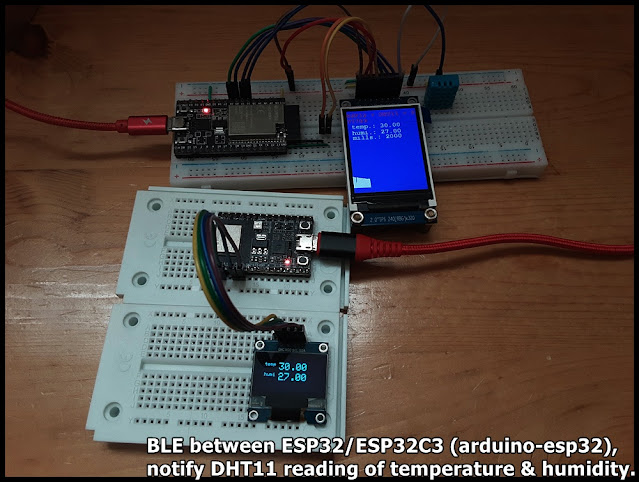
BLE between ESP32/ESP32C3 (arduino-esp32), notify DHT11 reading of temperature & humidity.

This exercise run on ESP32/ESP32-C3 to perform BLE communication, to notify data update. Both run on arduino-esp32 framework.


The BLE server run on ESP32-DevKitC V4, read DHT11 temperature & humidity, display on ST7789 SPI TFT, and notify connected client. The BLE client run on ESP32-C3-DevKitM-1, connect to BLE server, update SSD1306 I2C OLED once notified data updated.

Basically, the server copy from my former exercise "ESP32 + DHT11 temperature & humidity sensor with display on ST7789 and BLE function", the client copy from BLE_client example. 

But with my original setting (follow BLE_notify example) in server side:

  pAdvertising->setScanResponse(false);
  pAdvertising->setMinPreferred(0x0);
both advertisedDevice.haveServiceUUID() and advertisedDevice.isAdvertisingService(serviceUUID) in client return false. So the client cannot find the server.

To solve it, I change the setting (follow BLE_server example):
  pAdvertising->setScanResponse(true);
  pAdvertising->setMinPreferred(0x06);
  pAdvertising->setMinPreferred(0x12);
then both advertisedDevice.haveServiceUUID() and advertisedDevice.isAdvertisingService(serviceUUID) in client return true, such that the server can be found.

ESP32_DHT_ST789_graphic_BLE_2021-12-14.ino, server side run on ESP32-DevKitC V4.
/*
   Execise run on ESP32 (ESP32-DevKitC V4) with arduino-esp32 2.0.1,
   read DHT11 Humidity & Temperature Sensor,
   and display on ST7789 SPI TFT, 2" IPS 240x320, with graph.
   BLE function added.

   Library needed:
   - DHT sensor library for ESPx by beegee_tokyo
   - Adafruit ST7735 and ST7789 Library by Adafruit
   - Adafruit GFX Library by Adafruit

    Modify from examples DHT_ESP32 of DHT sensor library for ESPx

    Connection between DHT11 and ESP32 (GPIO#)
    -----------------------------------------------
    DHT11         ESP32
    -----         -----
    VCC*          3V3
    DATA**        32
    NC
    GND           GND

 *  * - depends on module, my DHT11 module is 3V3~5V operate.

 *  ** - depends on your module, maybe you have to add a
    pull-up resistor (~10K Ohm) betwee DATA and VCC.

    Connection between ST7789 SPI and ESP32 (GPIO#)
    -----------------------------------------------
    ST7789 SPI    ESP32
    ----------    -----
    GND           GND
    VCC           3V3
    SCL           18
    SDA           23
    RES           26
    DC            25
    CS            33
    BLK           3V3

*/
#include "DHTesp.h"
#include <Ticker.h>
#include <Adafruit_GFX.h>    // Core graphics library
#include <Adafruit_ST7789.h> // Hardware-specific library for ST7789
#include <Fonts/FreeMonoBold12pt7b.h>
#include <SPI.h>

#include <BLEDevice.h>
#include <BLEServer.h>
#include <BLEUtils.h>
#include <BLE2902.h>

#ifndef ESP32
#pragma message(THIS EXAMPLE IS FOR ESP32 ONLY!)
#error Select ESP32 board.
#endif

DHTesp dht;

void tempTask(void *pvParameters);
bool getTemperature();
void triggerGetTemp();

/** Task handle for the light value read task */
TaskHandle_t tempTaskHandle = NULL;
/** Ticker for temperature reading */
Ticker tempTicker;
/** Comfort profile */
ComfortState cf;
/** Flag if task should run */
bool tasksEnabled = false;
/** Pin number for DHT11 data pin */
int dhtPin = 32;  //17;

//hardware SPI MOSI   23
//hardware SPI SCK    18
#define TFT_CS        33
#define TFT_RST       26
#define TFT_DC        25
Adafruit_ST7789 tft = Adafruit_ST7789(TFT_CS, TFT_DC, TFT_RST);

bool rqsUpdate = false;
TempAndHumidity updateValues;

unsigned long prvUpdateMillis;

#define FRAME_TOPX    0
#define FRAME_TOPY    200
#define FRAME_WIDTH   240
#define FRAME_HEIGHT  100
#define FRAME_BOTTOMY FRAME_TOPY + FRAME_HEIGHT
#define SCR_HEIGHT    320

int idx = 0;
#define IDX_MAX     240

BLEServer* pServer = NULL;
BLECharacteristic* pCharacteristic = NULL;
BLECharacteristic* pChar_temp = NULL;
BLECharacteristic* pChar_humi = NULL;
bool deviceConnected = false;
bool oldDeviceConnected = false;

// See the following for generating UUIDs:
// https://www.uuidgenerator.net/

#define SERVICE_UUID "FC8601FC-7829-407B-9C2E-4D3F117DFF2D"
#define CHAR_UUID_TEMP "0FD31907-35AE-4BB0-8AB1-51F98C05B326"
#define CHAR_UUID_HUMI "D01D3AF7-818D-4A90-AECF-0E1EC48AA5F0"

class MyServerCallbacks: public BLEServerCallbacks {
    void onConnect(BLEServer* pServer) {
      deviceConnected = true;
      BLEDevice::startAdvertising();
      Serial.println("MyServerCallbacks.onConnect");
    };

    void onDisconnect(BLEServer* pServer) {
      deviceConnected = false;
      Serial.println("MyServerCallbacks.onDisconnect");
    }
};

/**
   initTemp
   Setup DHT library
   Setup task and timer for repeated measurement
   @return bool
      true if task and timer are started
      false if task or timer couldn't be started
*/
bool initTemp() {
  byte resultValue = 0;
  // Initialize temperature sensor
  dht.setup(dhtPin, DHTesp::DHT11);
  Serial.println("DHT initiated");

  // Start task to get temperature
  xTaskCreatePinnedToCore(
    tempTask,                       /* Function to implement the task */
    "tempTask ",                    /* Name of the task */
    4000,                           /* Stack size in words */
    NULL,                           /* Task input parameter */
    5,                              /* Priority of the task */
    &tempTaskHandle,                /* Task handle. */
    1);                             /* Core where the task should run */

  if (tempTaskHandle == NULL) {
    Serial.println("Failed to start task for temperature update");
    return false;
  } else {
    // Start update of environment data every XX seconds
    tempTicker.attach(2, triggerGetTemp);
  }
  return true;
}

/**
   triggerGetTemp
   Sets flag dhtUpdated to true for handling in loop()
   called by Ticker getTempTimer
*/
void triggerGetTemp() {
  if (tempTaskHandle != NULL) {
    xTaskResumeFromISR(tempTaskHandle);
  }
}

/**
   Task to reads temperature from DHT11 sensor
   @param pvParameters
      pointer to task parameters
*/
void tempTask(void *pvParameters) {
  Serial.println("tempTask loop started");
  while (1) // tempTask loop
  {
    if (tasksEnabled) {
      // Get temperature values
      getTemperature();
    }
    // Got sleep again
    vTaskSuspend(NULL);
  }
}

/**
   getTemperature
   Reads temperature from DHT11 sensor
   @return bool
      true if temperature could be aquired
      false if aquisition failed
*/
bool getTemperature() {
  // Reading temperature for humidity takes about 250 milliseconds!
  // Sensor readings may also be up to 2 seconds 'old' (it's a very slow sensor)
  TempAndHumidity newValues = dht.getTempAndHumidity();
  // Check if any reads failed and exit early (to try again).
  if (dht.getStatus() != 0) {
    Serial.println("DHT11 error status: " + String(dht.getStatusString()));
    return false;
  }

  rqsUpdate = true;
  updateValues = newValues;
  return true;
}

void setup()
{
  Serial.begin(115200);
  Serial.println();
  Serial.println("DHT ESP32 example with tasks");

  //init DHT
  initTemp();
  // Signal end of setup() to tasks
  tasksEnabled = true;

  //init BLE
  // Create the BLE Device
  BLEDevice::init("ESP32-DHT11");

  // Create the BLE Server
  pServer = BLEDevice::createServer();

  pServer->setCallbacks(new MyServerCallbacks());

  // Create the BLE Service
  BLEService *pService = pServer->createService(SERVICE_UUID);

  // Create a BLE Characteristic for temp and humi
  pChar_temp = pService->createCharacteristic(
                 CHAR_UUID_TEMP,
                 BLECharacteristic::PROPERTY_READ   |
                 BLECharacteristic::PROPERTY_WRITE  |
                 BLECharacteristic::PROPERTY_NOTIFY |
                 BLECharacteristic::PROPERTY_INDICATE
               );
  pChar_humi = pService->createCharacteristic(
                 CHAR_UUID_HUMI,
                 BLECharacteristic::PROPERTY_READ   |
                 BLECharacteristic::PROPERTY_WRITE  |
                 BLECharacteristic::PROPERTY_NOTIFY |
                 BLECharacteristic::PROPERTY_INDICATE
               );

  pChar_temp->addDescriptor(new BLE2902());
  pChar_humi->addDescriptor(new BLE2902());

  // Start the service
  pService->start();

  // Start advertising
  BLEAdvertising *pAdvertising = BLEDevice::getAdvertising();
  pAdvertising->addServiceUUID(SERVICE_UUID);
  
  // Erik updated@2021-12-14
  //pAdvertising->setScanResponse(false);
  //pAdvertising->setMinPreferred(0x0);  // set value to 0x00 to not advertise this parameter
  
  pAdvertising->setScanResponse(true);
  pAdvertising->setMinPreferred(0x06);  // functions that help with iPhone connections issue
  pAdvertising->setMinPreferred(0x12);
  //print for information only
  Serial.println("pAdvertising->setScanResponse(true)");
  Serial.println("pAdvertising->setMinPreferred(0x06)");
  Serial.println("pAdvertising->setMinPreferred(0x12)");
  
  BLEDevice::startAdvertising();
  Serial.println("Waiting a client connection to notify...");


  //init ST7789
  tft.init(240, 320);           // Init ST7789 320x240
  tft.setRotation(2);
  tft.setFont(&FreeMonoBold12pt7b);
  tft.setTextWrap(true);

  tft.fillScreen(ST77XX_RED);
  delay(300);
  tft.fillScreen(ST77XX_GREEN);
  delay(300);
  tft.fillScreen(ST77XX_BLUE);
  delay(300);

  tft.setCursor(0, 0);
  tft.setTextColor(ST77XX_RED);
  tft.print("\n");
  tft.print("ESP32 + DHT11 + ST7789\n");

  prvUpdateMillis = millis();

}

void loop() {
  if (!tasksEnabled) {
    // Wait 2 seconds to let system settle down
    delay(2000);
    // Enable task that will read values from the DHT sensor
    tasksEnabled = true;
    if (tempTaskHandle != NULL) {
      vTaskResume(tempTaskHandle);
    }
  }

  if (rqsUpdate) {

    unsigned long curUpdateMillis = millis();

    tft.fillRect(0, 53, 240, 75, ST77XX_BLUE );

    tft.setCursor(0, 70);
    tft.setTextColor(ST77XX_WHITE);
    tft.print(" temp.: " + String(updateValues.temperature));
    tft.setCursor(0, 95);
    tft.setTextColor(ST77XX_WHITE);
    tft.print(" humi.: " + String(updateValues.humidity));
    tft.setCursor(0, 115);
    tft.setTextColor(ST77XX_WHITE);
    tft.print(" mills.: " + String(curUpdateMillis - prvUpdateMillis));
    prvUpdateMillis = curUpdateMillis;


    if (idx == 0) {
      tft.fillRect(FRAME_TOPX, FRAME_TOPY,
                   FRAME_WIDTH, SCR_HEIGHT - FRAME_TOPY,
                   ST77XX_BLUE);
    }

    tft.drawLine(
      FRAME_TOPX + idx, FRAME_BOTTOMY,
      FRAME_TOPX + idx, FRAME_BOTTOMY - (int)updateValues.temperature,
      ST77XX_WHITE);

    idx++;
    if (idx >= IDX_MAX)
      idx = 0;

    char bufTemp[5];
    char bufHumi[5];
    //convert floating point value to String
    dtostrf(updateValues.temperature, 0, 2, bufTemp);
    dtostrf(updateValues.humidity, 0, 2, bufHumi);

    pChar_temp->setValue((uint8_t*)bufTemp, 5);
    pChar_temp->notify();
    pChar_humi->setValue((uint8_t*)bufHumi, 5);
    pChar_humi->notify();

    //Serial.println(" T:" + String(updateValues.temperature) + " H:" + String(updateValues.humidity));
    rqsUpdate = false;


  }

  // disconnecting
  if (!deviceConnected && oldDeviceConnected) {
    Serial.println("disconnecting");
    delay(500); // give the bluetooth stack the chance to get things ready
    pServer->startAdvertising(); // restart advertising
    Serial.println("start advertising");
    oldDeviceConnected = deviceConnected;
  }
  // connecting
  if (deviceConnected && !oldDeviceConnected) {
    Serial.println("connecting");
    // do stuff here on connecting
    oldDeviceConnected = deviceConnected;
  }

  yield();
}


ESP32C3_BLE_client.ino, client side run on ESP32-C3-DevKitM-1. Copy from BLE_client example, with UUID updated.
/**
 * A BLE client example that is rich in capabilities.
 * There is a lot new capabilities implemented.
 * author unknown
 * updated by chegewara
 */

#include "BLEDevice.h"
//#include "BLEScan.h"

#define SERVICE_UUID "FC8601FC-7829-407B-9C2E-4D3F117DFF2D"
#define CHAR_UUID_TEMP "0FD31907-35AE-4BB0-8AB1-51F98C05B326"
#define CHAR_UUID_HUMI "D01D3AF7-818D-4A90-AECF-0E1EC48AA5F0"

// The remote service we wish to connect to.
static BLEUUID serviceUUID(SERVICE_UUID);
// The characteristic of the remote service we are interested in.
static BLEUUID    charUUID(CHAR_UUID_TEMP);

static boolean doConnect = false;
static boolean connected = false;
static boolean doScan = false;
static BLERemoteCharacteristic* pRemoteCharacteristic;
static BLEAdvertisedDevice* myDevice;

static void notifyCallback(
  BLERemoteCharacteristic* pBLERemoteCharacteristic,
  uint8_t* pData,
  size_t length,
  bool isNotify) {
    Serial.print("Notify callback for characteristic ");
    Serial.print(pBLERemoteCharacteristic->getUUID().toString().c_str());
    Serial.print(" of data length ");
    Serial.println(length);
    Serial.print("data: ");
    Serial.println((char*)pData);
}

class MyClientCallback : public BLEClientCallbacks {
  void onConnect(BLEClient* pclient) {
  }

  void onDisconnect(BLEClient* pclient) {
    connected = false;
    Serial.println("onDisconnect");
  }
};

bool connectToServer() {
    Serial.print("Forming a connection to ");
    Serial.println(myDevice->getAddress().toString().c_str());
    
    BLEClient*  pClient  = BLEDevice::createClient();
    Serial.println(" - Created client");

    pClient->setClientCallbacks(new MyClientCallback());

    // Connect to the remove BLE Server.
    pClient->connect(myDevice);  // if you pass BLEAdvertisedDevice instead of address, it will be recognized type of peer device address (public or private)
    Serial.println(" - Connected to server");
    pClient->setMTU(517); //set client to request maximum MTU from server (default is 23 otherwise)
  
    // Obtain a reference to the service we are after in the remote BLE server.
    BLERemoteService* pRemoteService = pClient->getService(serviceUUID);
    if (pRemoteService == nullptr) {
      Serial.print("Failed to find our service UUID: ");
      Serial.println(serviceUUID.toString().c_str());
      pClient->disconnect();
      return false;
    }
    Serial.println(" - Found our service");


    // Obtain a reference to the characteristic in the service of the remote BLE server.
    pRemoteCharacteristic = pRemoteService->getCharacteristic(charUUID);
    if (pRemoteCharacteristic == nullptr) {
      Serial.print("Failed to find our characteristic UUID: ");
      Serial.println(charUUID.toString().c_str());
      pClient->disconnect();
      return false;
    }
    Serial.println(" - Found our characteristic");

    // Read the value of the characteristic.
    if(pRemoteCharacteristic->canRead()) {
      std::string value = pRemoteCharacteristic->readValue();
      Serial.print("The characteristic value was: ");
      Serial.println(value.c_str());
    }

    if(pRemoteCharacteristic->canNotify())
      pRemoteCharacteristic->registerForNotify(notifyCallback);

    connected = true;
    return true;
}
/**
 * Scan for BLE servers and find the first one that advertises the service we are looking for.
 */
class MyAdvertisedDeviceCallbacks: public BLEAdvertisedDeviceCallbacks {
 /**
   * Called for each advertising BLE server.
   */
  void onResult(BLEAdvertisedDevice advertisedDevice) {
    Serial.print("BLE Advertised Device found: ");
    Serial.println(advertisedDevice.toString().c_str());

    if(advertisedDevice.haveServiceUUID()){
      Serial.println("- advertisedDevice.haveServiceUUID()");
    }
    if(advertisedDevice.isAdvertisingService(serviceUUID)){
      Serial.println("- advertisedDevice.isAdvertisingService(serviceUUID)");
    }

    // We have found a device, let us now see if it contains the service we are looking for.
    if (advertisedDevice.haveServiceUUID() && advertisedDevice.isAdvertisingService(serviceUUID)) {

      BLEDevice::getScan()->stop();
      myDevice = new BLEAdvertisedDevice(advertisedDevice);
      doConnect = true;
      doScan = true;

      Serial.println("*** device found ***");

    } // Found our server
  } // onResult
}; // MyAdvertisedDeviceCallbacks


void setup() {
  Serial.begin(115200);
  Serial.println("Starting Arduino BLE Client application...");
  BLEDevice::init("");

  // Retrieve a Scanner and set the callback we want to use to be informed when we
  // have detected a new device.  Specify that we want active scanning and start the
  // scan to run for 5 seconds.
  BLEScan* pBLEScan = BLEDevice::getScan();
  pBLEScan->setAdvertisedDeviceCallbacks(new MyAdvertisedDeviceCallbacks());
  pBLEScan->setInterval(1349);
  pBLEScan->setWindow(449);
  pBLEScan->setActiveScan(true);
  pBLEScan->start(5, false);
} // End of setup.


// This is the Arduino main loop function.
void loop() {

  // If the flag "doConnect" is true then we have scanned for and found the desired
  // BLE Server with which we wish to connect.  Now we connect to it.  Once we are 
  // connected we set the connected flag to be true.
  if (doConnect == true) {
    if (connectToServer()) {
      Serial.println("We are now connected to the BLE Server.");
    } else {
      Serial.println("We have failed to connect to the server; there is nothin more we will do.");
    }
    doConnect = false;
  }

  // If we are connected to a peer BLE Server, update the characteristic each time we are reached
  // with the current time since boot.
  if (connected) {
    String newValue = "Time since boot: " + String(millis()/1000);
    Serial.println("Setting new characteristic value to \"" + newValue + "\"");
    
    // Set the characteristic's value to be the array of bytes that is actually a string.
    pRemoteCharacteristic->writeValue(newValue.c_str(), newValue.length());
  }else if(doScan){
    BLEDevice::getScan()->start(0);  // this is just example to start scan after disconnect, most likely there is better way to do it in arduino
  }
  
  delay(1000); // Delay a second between loops.
} // End of loop


ESP32C3_BLE_DHT11_client.ino, updated to recognize temperature & humidity.
/**
 * modified from BLE_client
 * to work with ESP32_DHT_ST789_graphic_BLE.ino,
 * to monitor temp/humi.
 */

#include "BLEDevice.h"
//#include "BLEScan.h"

#define SERVICE_UUID "FC8601FC-7829-407B-9C2E-4D3F117DFF2D"
#define CHAR_UUID_TEMP "0FD31907-35AE-4BB0-8AB1-51F98C05B326"
#define CHAR_UUID_HUMI "D01D3AF7-818D-4A90-AECF-0E1EC48AA5F0"

// The remote service we wish to connect to.
static BLEUUID serviceUUID(SERVICE_UUID);
// The characteristic of the remote service we are interested in.
static BLEUUID  charUUID_TEMP(CHAR_UUID_TEMP);
static BLEUUID  charUUID_HUMI(CHAR_UUID_HUMI);

static boolean doConnect = false;
static boolean connected = false;
static boolean doScan = false;
static BLERemoteCharacteristic* pRemoteChar_temp;
static BLERemoteCharacteristic* pRemoteChar_humi;
static BLEAdvertisedDevice* myDevice;

static void notifyCallback(
  BLERemoteCharacteristic* pBLERemoteCharacteristic,
  uint8_t* pData,
  size_t length,
  bool isNotify) {

    String strCharUUID = pBLERemoteCharacteristic->getUUID().toString().c_str();
    Serial.printf("Notify callback for characteristic: ");
    strCharUUID.toUpperCase();
    Serial.println(strCharUUID);

    if(strCharUUID.equals(CHAR_UUID_TEMP)){
      Serial.print("temp: ");
      for (int i=0; i<length; i++)
          Serial.print((char) pData[i]);
    }else if(strCharUUID.equals(CHAR_UUID_HUMI)){
      Serial.print("humi: ");
      for (int i=0; i<length; i++)
          Serial.print((char) pData[i]);
    }

    Serial.println();
}

class MyClientCallback : public BLEClientCallbacks {
  void onConnect(BLEClient* pclient) {
  }

  void onDisconnect(BLEClient* pclient) {
    connected = false;
    Serial.println("onDisconnect");
  }
};

bool connectToServer() {
    Serial.print("Forming a connection to ");
    Serial.println(myDevice->getAddress().toString().c_str());
    
    BLEClient*  pClient  = BLEDevice::createClient();
    Serial.println(" - Created client");

    pClient->setClientCallbacks(new MyClientCallback());

    // Connect to the remove BLE Server.
    // if you pass BLEAdvertisedDevice instead of address, 
    // it will be recognized type of peer device address (public or private)
    pClient->connect(myDevice);  
    Serial.println(" - Connected to server");
    //set client to request maximum MTU from server (default is 23 otherwise)
    pClient->setMTU(517); 
  
    // Obtain a reference to the service we are after in the remote BLE server.
    BLERemoteService* pRemoteService = pClient->getService(serviceUUID);
    if (pRemoteService == nullptr) {
      Serial.print("Failed to find our service UUID: ");
      Serial.println(serviceUUID.toString().c_str());
      pClient->disconnect();
      return false;
    }
    Serial.println(" - Found our service");


    // Obtain a reference to the characteristic in the service 
    // of the remote BLE server.
    pRemoteChar_temp = pRemoteService->getCharacteristic(charUUID_TEMP);
    if (pRemoteChar_temp == nullptr) {
      Serial.print("Failed to find our characteristic UUID: ");
      Serial.println(charUUID_TEMP.toString().c_str());
      pClient->disconnect();
      return false;
    }
    Serial.println(" - Found temp characteristic");

    pRemoteChar_humi = pRemoteService->getCharacteristic(charUUID_HUMI);
    if (pRemoteChar_humi == nullptr) {
      Serial.print("Failed to find our characteristic UUID: ");
      Serial.println(charUUID_TEMP.toString().c_str());
      pClient->disconnect();
      return false;
    }
    Serial.println(" - Found humi characteristic");

    // Read the value of the characteristic.
    if(pRemoteChar_temp->canRead()) {
      std::string value = pRemoteChar_temp->readValue();
      Serial.print("The characteristic temp value was: ");
      Serial.println(value.c_str());
    }
    if(pRemoteChar_humi->canRead()) {
      std::string value = pRemoteChar_humi->readValue();
      Serial.print("The characteristic humi value was: ");
      Serial.println(value.c_str());
    }

    if(pRemoteChar_temp->canNotify())
      pRemoteChar_temp->registerForNotify(notifyCallback);
    if(pRemoteChar_humi->canNotify())
      pRemoteChar_humi->registerForNotify(notifyCallback);

    connected = true;
    return true;
}
/**
 * Scan for BLE servers and 
 * find the first one that advertises the service we are looking for.
 */
class MyAdvertisedDeviceCallbacks: public BLEAdvertisedDeviceCallbacks {
 /**
   * Called for each advertising BLE server.
   */
  void onResult(BLEAdvertisedDevice advertisedDevice) {
    Serial.print("BLE Advertised Device found: ");
    Serial.println(advertisedDevice.toString().c_str());

    if(advertisedDevice.haveServiceUUID()){
      Serial.println("- haveServiceUUID()");
    }
    if(advertisedDevice.isAdvertisingService(serviceUUID)){
      Serial.println("- isAdvertisingService(serviceUUID)");
    }

    // We have found a device, 
    // let us now see if it contains the service we are looking for.
    if (advertisedDevice.haveServiceUUID() && 
      advertisedDevice.isAdvertisingService(serviceUUID)) {

      BLEDevice::getScan()->stop();
      myDevice = new BLEAdvertisedDevice(advertisedDevice);
      doConnect = true;
      doScan = true;

      Serial.println("*** device found ***");

    } // Found our server
  } // onResult
}; // MyAdvertisedDeviceCallbacks


void setup() {
  Serial.begin(115200);
  Serial.println("Starting Arduino BLE Client application...");
  BLEDevice::init("");

  // Retrieve a Scanner and set the callback we want to use to be informed when we
  // have detected a new device.  Specify that we want active scanning and start the
  // scan to run for 5 seconds.
  BLEScan* pBLEScan = BLEDevice::getScan();
  pBLEScan->setAdvertisedDeviceCallbacks(new MyAdvertisedDeviceCallbacks());
  pBLEScan->setInterval(1349);
  pBLEScan->setWindow(449);
  pBLEScan->setActiveScan(true);
  pBLEScan->start(5, false);
} // End of setup.


// This is the Arduino main loop function.
void loop() {

  // If the flag "doConnect" is true then we have scanned for and found the desired
  // BLE Server with which we wish to connect.  Now we connect to it.  Once we are 
  // connected we set the connected flag to be true.
  if (doConnect == true) {
    if (connectToServer()) {
      Serial.println("We are now connected to the BLE Server.");
    } else {
      Serial.println("We have failed to connect to the server.");
    }
    doConnect = false;
  }

  // If we are connected to a peer BLE Server, 
  // update the characteristic each time we are reached
  // with the current time since boot.
  if (connected) {

  }else if(doScan){
    // this is just example to start scan after disconnect, 
    // most likely there is better way to do it in arduino
    BLEDevice::getScan()->start(0);  
  }
  
  delay(1000); // Delay a second between loops.
} // End of loop


ESP32C3_BLE_DHT11_SSD1306_client.ino, with display on SSD1306 I2C OLED. For the SSD1306 part, refer to last exercise "ESP32-C3-DevKitM-1 display on ssd1306 I2C OLED using Adafruit SSD1306 library".
/**
 * modified from BLE_client
 * to work with ESP32_DHT_ST789_graphic_BLE.ino,
 * to monitor temp/humi.
 * and display on SSD1306 I2C OLED
 */

#include "BLEDevice.h"
//#include "BLEScan.h"
#include <SPI.h>
#include <Wire.h>
#include <Adafruit_GFX.h>
#include <Adafruit_SSD1306.h>

#define SCREEN_WIDTH 128 // OLED display width, in pixels
#define SCREEN_HEIGHT 64 // OLED display height, in pixels

#define SDA_pin 3
#define SCL_pin 2
#define OLED_RESET     -1
#define SCREEN_ADDRESS 0x3C //0x3D ///
Adafruit_SSD1306 display;

#define SERVICE_UUID "FC8601FC-7829-407B-9C2E-4D3F117DFF2D"
#define CHAR_UUID_TEMP "0FD31907-35AE-4BB0-8AB1-51F98C05B326"
#define CHAR_UUID_HUMI "D01D3AF7-818D-4A90-AECF-0E1EC48AA5F0"

// The remote service we wish to connect to.
static BLEUUID serviceUUID(SERVICE_UUID);
// The characteristic of the remote service we are interested in.
static BLEUUID  charUUID_TEMP(CHAR_UUID_TEMP);
static BLEUUID  charUUID_HUMI(CHAR_UUID_HUMI);

static boolean doConnect = false;
static boolean connected = false;
static boolean doScan = false;
static BLERemoteCharacteristic* pRemoteChar_temp;
static BLERemoteCharacteristic* pRemoteChar_humi;
static BLEAdvertisedDevice* myDevice;

static void notifyCallback(
  BLERemoteCharacteristic* pBLERemoteCharacteristic,
  uint8_t* pData,
  size_t length,
  bool isNotify) {

    String strCharUUID = pBLERemoteCharacteristic->getUUID().toString().c_str();
    Serial.printf("Notify callback for characteristic: ");
    strCharUUID.toUpperCase();
    Serial.println(strCharUUID);

    if(strCharUUID.equals(CHAR_UUID_TEMP)){
      Serial.print("temp: ");

      String strTemp = (char*)pData;
      Serial.print(strTemp);
      displayTemp(strTemp);
      
    }else if(strCharUUID.equals(CHAR_UUID_HUMI)){
      Serial.print("humi: ");

      String strHumi = (char*)pData;
      Serial.print(strHumi);
      displayHumi(strHumi);
    }

    Serial.println();
}

class MyClientCallback : public BLEClientCallbacks {
  void onConnect(BLEClient* pclient) {
    displayPrompt("onConnect");
  }

  void onDisconnect(BLEClient* pclient) {
    connected = false;
    Serial.println("onDisconnect");
    displayPrompt("onDisconnect");
  }
};

bool connectToServer() {
    Serial.print("Forming a connection to ");
    Serial.println(myDevice->getAddress().toString().c_str());
    
    BLEClient*  pClient  = BLEDevice::createClient();
    Serial.println(" - Created client");

    pClient->setClientCallbacks(new MyClientCallback());

    // Connect to the remove BLE Server.
    // if you pass BLEAdvertisedDevice instead of address, 
    // it will be recognized type of peer device address (public or private)
    pClient->connect(myDevice);  
    Serial.println(" - Connected to server");
    //set client to request maximum MTU from server (default is 23 otherwise)
    pClient->setMTU(517); 
  
    // Obtain a reference to the service we are after in the remote BLE server.
    BLERemoteService* pRemoteService = pClient->getService(serviceUUID);
    if (pRemoteService == nullptr) {
      Serial.print("Failed to find our service UUID: ");
      Serial.println(serviceUUID.toString().c_str());
      pClient->disconnect();
      return false;
    }
    Serial.println(" - Found our service");


    // Obtain a reference to the characteristic in the service 
    // of the remote BLE server.
    pRemoteChar_temp = pRemoteService->getCharacteristic(charUUID_TEMP);
    if (pRemoteChar_temp == nullptr) {
      Serial.print("Failed to find our characteristic UUID: ");
      Serial.println(charUUID_TEMP.toString().c_str());
      pClient->disconnect();
      return false;
    }
    Serial.println(" - Found temp characteristic");

    pRemoteChar_humi = pRemoteService->getCharacteristic(charUUID_HUMI);
    if (pRemoteChar_humi == nullptr) {
      Serial.print("Failed to find our characteristic UUID: ");
      Serial.println(charUUID_TEMP.toString().c_str());
      pClient->disconnect();
      return false;
    }
    Serial.println(" - Found humi characteristic");

    // Read the value of the characteristic.
    if(pRemoteChar_temp->canRead()) {
      std::string value = pRemoteChar_temp->readValue();
      Serial.print("The characteristic temp value was: ");
      Serial.println(value.c_str());
      displayTemp(value.c_str());
    }
    if(pRemoteChar_humi->canRead()) {
      std::string value = pRemoteChar_humi->readValue();
      Serial.print("The characteristic humi value was: ");
      Serial.println(value.c_str());
      displayHumi(value.c_str());
    }

    if(pRemoteChar_temp->canNotify())
      pRemoteChar_temp->registerForNotify(notifyCallback);
    if(pRemoteChar_humi->canNotify())
      pRemoteChar_humi->registerForNotify(notifyCallback);

    connected = true;
    return true;
}
/**
 * Scan for BLE servers and 
 * find the first one that advertises the service we are looking for.
 */
class MyAdvertisedDeviceCallbacks: public BLEAdvertisedDeviceCallbacks {
 /**
   * Called for each advertising BLE server.
   */
  void onResult(BLEAdvertisedDevice advertisedDevice) {
    Serial.print("BLE Advertised Device found: ");
    Serial.println(advertisedDevice.toString().c_str());

    if(advertisedDevice.haveServiceUUID()){
      Serial.println("- haveServiceUUID()");
    }
    if(advertisedDevice.isAdvertisingService(serviceUUID)){
      Serial.println("- isAdvertisingService(serviceUUID)");
    }

    // We have found a device, 
    // let us now see if it contains the service we are looking for.
    if (advertisedDevice.haveServiceUUID() && 
      advertisedDevice.isAdvertisingService(serviceUUID)) {

      BLEDevice::getScan()->stop();
      myDevice = new BLEAdvertisedDevice(advertisedDevice);
      doConnect = true;
      doScan = true;

      Serial.println("*** device found ***");
      displayPrompt("found");

    } // Found our server
  } // onResult
}; // MyAdvertisedDeviceCallbacks

void initScreen(){

  Wire.setPins(SDA_pin,SCL_pin);
  display = Adafruit_SSD1306(SCREEN_WIDTH, SCREEN_HEIGHT, &Wire, OLED_RESET);
  
  // SSD1306_SWITCHCAPVCC = generate display voltage from 3.3V internally
  if(!display.begin(SSD1306_SWITCHCAPVCC, SCREEN_ADDRESS)) {
    Serial.println(F("SSD1306 allocation failed"));
    for(;;); // Don't proceed, loop forever
  }

  display.clearDisplay();
  display.display();
  delay(500);

  display.setTextSize(2);
  display.setTextColor(SSD1306_WHITE); // Draw white text
  display.cp437(true);         // Use full 256 char 'Code Page 437' font

  display.setCursor(10, 10);
  display.printf("ESP32C3");
  display.setCursor(10, 28);
  display.printf("BLE");

  display.fillRect(0, 0, display.width()-1, display.height()-1, SSD1306_INVERSE);
  display.display();
  delay(3000);

  // Clear the buffer
  display.clearDisplay();
  display.display();

}


void displayTemp(String temp){

  //erase display of old temp
  display.fillRect(40, 10, 80, 18, SSD1306_BLACK);
  
  display.setCursor(10, 10);
  display.setTextSize(1);
  display.print("temp");
  display.setCursor(40, 10);
  display.setTextSize(2);
  display.print(temp);
  display.display();
}

void displayHumi(String humi){

  //erase display of old humi
  display.fillRect(40, 30, 80, 18, SSD1306_BLACK);
  
  display.setCursor(10, 30);
  display.setTextSize(1);
  display.print("humi");
  display.setCursor(40, 30);
  display.setTextSize(2);
  display.print(humi);
  display.display();
}

void displayPrompt(String prompt){

  //erase display of old temp
  display.fillRect(10, 10, 110, 40, SSD1306_BLACK);

  display.setCursor(40, 10);
  display.setTextSize(1);
  display.print(prompt);
  display.display();
}


void setup() {
  Serial.begin(115200);
  Serial.println("Starting Arduino BLE Client application...");

  initScreen();
  
  BLEDevice::init("");

  // Retrieve a Scanner and set the callback we want to use to be informed when we
  // have detected a new device.  Specify that we want active scanning and start the
  // scan to run for 5 seconds.
  BLEScan* pBLEScan = BLEDevice::getScan();
  pBLEScan->setAdvertisedDeviceCallbacks(new MyAdvertisedDeviceCallbacks());
  pBLEScan->setInterval(1349);
  pBLEScan->setWindow(449);
  pBLEScan->setActiveScan(true);
  pBLEScan->start(5, false);
  
  displayPrompt("Scan");
  Serial.println("Scan");
} // End of setup.


// This is the Arduino main loop function.
void loop() {

  // If the flag "doConnect" is true then we have scanned for and found the desired
  // BLE Server with which we wish to connect.  Now we connect to it.  Once we are 
  // connected we set the connected flag to be true.
  if (doConnect == true) {
    if (connectToServer()) {
      Serial.println("We are now connected to the BLE Server.");
    } else {
      Serial.println("We have failed to connect to the server.");
    }
    doConnect = false;
  }

  // If we are connected to a peer BLE Server, 
  // update the characteristic each time we are reached
  // with the current time since boot.
  if (connected) {

  }else if(doScan){
    // this is just example to start scan after disconnect, 
    // most likely there is better way to do it in arduino
    displayPrompt("Scan");
    Serial.println("Scan");
    BLEDevice::getScan()->start(0);  
  }
  
  delay(1000); // Delay a second between loops.
} // End of loop


Sunday, December 12, 2021

arduino-esp32, ESP32-C3-DevKitM-1 display on ssd1306 I2C OLED using Adafruit SSD1306 library

This post show how to driver 128x64 ssd1306 I2C OLED on ESP32-C3-DevKitM-1 (arduino-esp32) using Adafruit SSD1306 library.


In Arduino IDE, install Adafruit SSD1306 library.


Open ssd1306_128x64_i2c example.


This exercise run on ESP32-C3-DevKitM-1, but the default I2C SDA pin (GPIO8) is connected to on-board RGB LED. (ref: arduino-esp32 (ESP32-C3) scan i2c device address, using custom SDA and SCL) In my exercise SDA/SCL are re-allocated to GPIO3 and GPIO2.

Here list the modification I apply on ssd1306_128x64_i2c example,marked in RED:
		.
		.
		.
// Declaration for an SSD1306 display connected to I2C (SDA, SCL pins)
// The pins for I2C are defined by the Wire-library. 
// On an arduino UNO:       A4(SDA), A5(SCL)
// On an arduino MEGA 2560: 20(SDA), 21(SCL)
// On an arduino LEONARDO:   2(SDA),  3(SCL), ...

/* remarked by Erik 2021-12-13
 * On my SSD1306 128x64 OLED
 * - No RESET pin
 * - I2C Address = 0x3C
 * - I have to re-allocate I2C SDA/SCL, due to conflict with onboard RGB LED.
 * - SDA = 3
 * - SCL = 2
 */
#define SDA_pin 3
#define SCL_pin 2
#define OLED_RESET     -1 //4 // Reset pin # (or -1 if sharing Arduino reset pin)
#define SCREEN_ADDRESS 0x3C //0x3D /// ...
//Adafruit_SSD1306 display(SCREEN_WIDTH, SCREEN_HEIGHT, &Wire, OLED_RESET);
Adafruit_SSD1306 display;

#define NUMFLAKES     10 // Number of snowflakes in the animation example
		.
		.
		.
void setup() {
  Serial.begin(9600);

  // by Erik 2021-12-13
  // Call Wire.setPins to assign SDA/SCL pins
  Wire.setPins(SDA_pin,SCL_pin);
  display = Adafruit_SSD1306(SCREEN_WIDTH, SCREEN_HEIGHT, &Wire, OLED_RESET);

		.
		.
		.


Tuesday, October 26, 2021

arduino-esp32, drive SSD1306 I2C OLED with ESP32/C3/S2 using esp8266-oled-ssd1306 library


With arduino-esp32 2.0.0 installed on Arduino IDE, this post run examples on ESP32-DevKitC V4/ESP32-S2-Saola-1/ESP32-C3-DevKitM-1 to drive SSD1306 I2C OLED, using esp8266-oled-ssd1306 library.


Open Library Manager in Arduino IDE, install "ESP8266 and ESP32 OLED driver for SSD1306 displays" by ThingPulse, currently 4.2.1. (esp8266-oled-ssd1306)


In the library examples, OLED display is initialized using pre-defined SDA and SCL based on your board's pins_arduino.h.
SSD1306Wire display(0x3c, SDA, SCL);   // ADDRESS, SDA, SCL


for ESP32 Dev Module:
SDA:  21
SCL:  22

for ESP32S2 Dev Module:
SDA:  8
SCL:  9

for ESP32C2 Dev Module:
SDA:  8
SCL:  9

* But on ESP32-C3-DevKitM-1 I used to test for ESP32C2 Dev Module, GPIO8 is connected to onboardRGB LED. (refer to the post "Drive ESP32-C3-DevKitM-1/ESP32-S2-Saola-1 on-board RGB LED (WS2812) in Arduino Framework") So I re-allocate to:
SDA:  19
SCL:  18

same GPIOs assigned in "ESP32-C3/MicroPython + SSD1306 I2C OLED".
SSD1306Wire display(0x3c, 19, 18);   // ADDRESS, SDA, SCL

Also connect ESP32 dev board's 3V3 and GND to SSD1306 VCC and GND.

Wednesday, October 20, 2021

ESP32-C3/MicroPython + SSD1306 I2C OLED

With MicroPython firmware installed on ESP32-C3, It's a exercise to drive 0.96 inch 128x64 OLED with SSD1306 I2C driver.

To driver SSD1306 I2C OLED, we are going to install MicroPython ssd1306 driver:
- Visit https://github.com/micropython/micropython/blob/master/drivers/display/ssd1306.py
- Copy ssd1306.py and upload to MicroPython device, '/' directory.

In my exercise, the default I2C(0) is used to drive SSD1306; SCL = 18, SDA = 19.

Connection between:
ESP32-C3    I2C SSD1306 OLED
============================
GND	    GND
3V3	    VCC
18	    SCL
19	    SDA

Exercise code

mpyESP32C3_ssd1306.py, a simplest example. Also show how to catch OSError of ENODEV if no I2C ssd1306 connected.
"""
MicroPython/ESP32C3 exercise run on ESP32-C3-DevKitM-1,
work with SSD1306 I2C OLED.
And,catch exception of ENODEV.

"""
import uos
import usys
import machine
import time
import ssd1306

print("====================================")
print(usys.implementation[0], uos.uname()[3],
      "\nrun on", uos.uname()[4])
print("====================================")

oled_i2c = machine.I2C(0)
print("Default I2C:", oled_i2c)
"""
oled_ssd1306 = ssd1306.SSD1306_I2C(128, 64, oled_i2c)
print("Default SSD1306 I2C address:",
          oled_ssd1306.addr, "/", hex(oled_ssd1306.addr))
oled_ssd1306.text('Hello, World!', 0, 0, 1)
oled_ssd1306.show()

"""
try:
    oled_ssd1306 = ssd1306.SSD1306_I2C(128, 64, oled_i2c)
    print("Default SSD1306 I2C address:",
          oled_ssd1306.addr, "/", hex(oled_ssd1306.addr))
    oled_ssd1306.text('Hello, World!', 0, 0, 1)
    oled_ssd1306.show()
except OSError as exc:
    print("OSError!", exc)
    if exc.errno == errno.ENODEV:
        print("No such device")

print("~ bye ~")

mpyESP32C3_ssd1306_hello.py
"""
MicroPython/ESP32C3 exercise run on ESP32-C3-DevKitM-1,
work with SSD1306 I2C OLED.
HelloWorld! with something.

"""
import uos
import usys
import machine
import time
import ssd1306

print("====================================")
print(usys.implementation[0], uos.uname()[3],
      "\nrun on", uos.uname()[4])
print("====================================")

oled_i2c = machine.I2C(0)
print("Default I2C:", oled_i2c)

oled_ssd1306 = ssd1306.SSD1306_I2C(128, 64, oled_i2c)
print("Default SSD1306 I2C address:",
      oled_ssd1306.addr, "/", hex(oled_ssd1306.addr))

oled_ssd1306.fill(1)    #all on
oled_ssd1306.show()
time.sleep(1)
oled_ssd1306.fill(0)    #all off
oled_ssd1306.show()
time.sleep(1)

def splitLine(src, cnt):
    return [src[i:i+cnt] for i in range(0, len(src), cnt)]

oled_ssd1306.text('Hello, World!', 0, 0, 1)
oled_ssd1306.text(str(usys.implementation[0]), 0, 20, 1)
oled_ssd1306.text(str(uos.uname()[2]), 0, 30, 1)

line_y = 40
for l in splitLine(str(uos.uname()[4]), 15):
    oled_ssd1306.text(l, 0, line_y, 1)
    line_y += 10

oled_ssd1306.show()
time.sleep(1)

oled_ssd1306.invert(1)
oled_ssd1306.show()
time.sleep(0.5)
oled_ssd1306.invert(0)
oled_ssd1306.show()
time.sleep(0.5)

oled_ssd1306.rect(15, 15, oled_ssd1306.width-30,
                  oled_ssd1306.height-30, 1)
oled_ssd1306.show()
time.sleep(1)

for x in range(oled_ssd1306.width):
    oled_ssd1306.scroll(1, 0)
    oled_ssd1306.show()
    time.sleep_ms(50)

oled_ssd1306.fill_rect(15, 15, oled_ssd1306.width-30,
                  oled_ssd1306.height-30, 1)
oled_ssd1306.show()
time.sleep(0.5)
oled_ssd1306.text('~ bye ~', 55, 55, 1)
oled_ssd1306.show()
time.sleep(0.5)

print("~ bye ~")

mpyESP32C3_ssd1306_pixel.py
"""
MicroPython/ESP32C3 exercise run on ESP32-C3-DevKitM-1,
work with SSD1306 I2C OLED.

Draw randow pixels

"""
import uos
import usys
import machine
import time
import urandom
import ssd1306

print("====================================")
print(usys.implementation[0], uos.uname()[3],
      "\nrun on", uos.uname()[4])
print("====================================")

oled_i2c = machine.I2C(0)
print("Default I2C:", oled_i2c)

oled_ssd1306 = ssd1306.SSD1306_I2C(128, 64, oled_i2c)
print("Default SSD1306 I2C address:",
          oled_ssd1306.addr, "/", hex(oled_ssd1306.addr))

def drawRandomPixels():
    for i in range(500):
        rx = urandom.randint(0, oled_ssd1306.width)
        ry = urandom.randint(0, oled_ssd1306.height)
        oled_ssd1306.pixel(rx, ry, 1)
        oled_ssd1306.show()
    
oled_ssd1306.fill(0)
oled_ssd1306.text('Random Pixels', 0, 0, 1)
oled_ssd1306.show()
drawRandomPixels()

oled_ssd1306.fill(0)
oled_ssd1306.text('Random Pixels', 0, 0, 1)
oled_ssd1306.invert(1)
oled_ssd1306.show()
drawRandomPixels()

print("~ bye ~")

mpyESP32C3_ssd1306_text.py
"""
MicroPython/ESP32C3 exercise run on ESP32-C3-DevKitM-1,
work with SSD1306 I2C OLED.

Display scrolling text (read from /boot.py) on OLED.

"""
import uos
import usys
import machine
import time
import ssd1306

# Read and display /boot.py file
def readBoot():
    print("========================")
    fileBoot = "/boot.py"
    print(fileBoot)
    print("========================")
    with open(fileBoot, "r") as f:
        line = f.readline()
        while line != '':
            line = line.rstrip() #strip trailing whitespace
            print(line)
            oled_ssd1306.scroll(0, -10)
            oled_ssd1306.text(line, 0, 46, 1)
            oled_ssd1306.show()
            time.sleep(0.5)
            line = f.readline()
    print("========================")

print("====================================")
print(usys.implementation[0], uos.uname()[3],
      "\nrun on", uos.uname()[4])
print("====================================")

oled_i2c = machine.I2C(0)
print("Default I2C:", oled_i2c)

oled_ssd1306 = ssd1306.SSD1306_I2C(128, 64, oled_i2c)
print("Default SSD1306 I2C address:",
          oled_ssd1306.addr, "/", hex(oled_ssd1306.addr))
oled_ssd1306.text('Hello, World!', 0, 0, 1)
oled_ssd1306.show()

readBoot()

print("~ bye ~")